
A Google Review link gives customers a direct path to leave feedback in seconds. Businesses with a steady stream of fresh reviews consistently outrank competitors in local search and earn more clicks.
| What you’ll learn in this article: ● What Is a Google Review Link? ● How to Get a Google Review Link ● How to Send a Google Review Link to Customers ● How to Add a Google Review Link on Your Website ● Best Practices for Getting More Reviews |
What Is a Google Review Link?
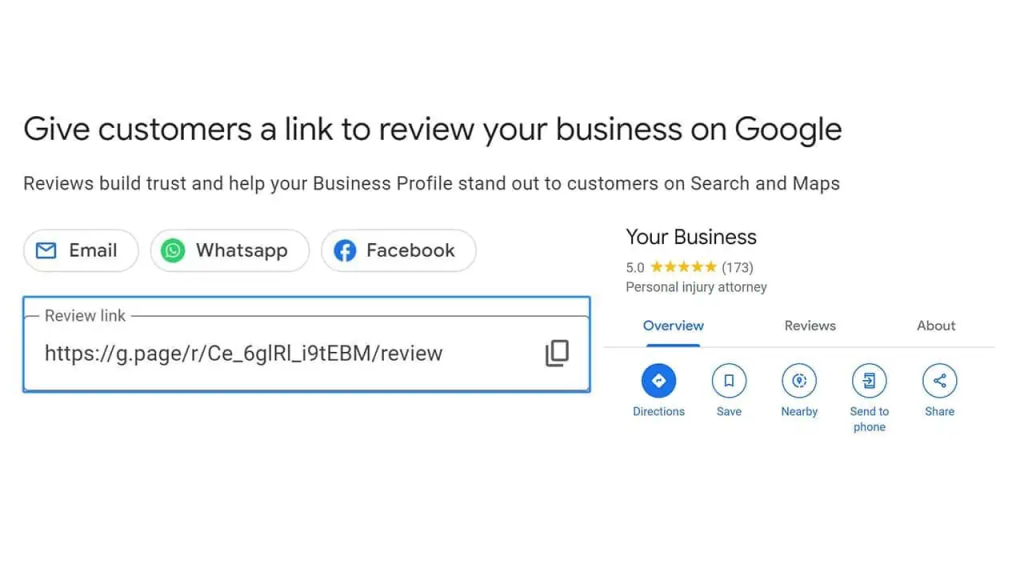
A Google Review Link is a direct URL that sends customers straight to a business’s review page on Google.
Instead of searching manually, customers click the link and land immediately on the review form. The process takes seconds, removing friction that often stops people from leaving feedback.
Businesses generate these links through Google Business Profile. Each link is unique to a specific listing and carries a place ID that identifies the location in Google’s system.
Marketers share these links via email, SMS, social media, and printed materials. Many QR codes on receipts simply encode a Google Review link underneath.
How to Get a Google Review Link
Businesses can retrieve a Google Review link through three main methods. Each works depending on what tools are available and how quickly access is needed.
Get Your Google Review Link From Google Business Profile
Google Business Profile is the most direct and reliable source for a review link. Owners and managers with verified access can generate the link in under a minute directly from the dashboard.
- Sign in at business.google.com
- Select the correct business location
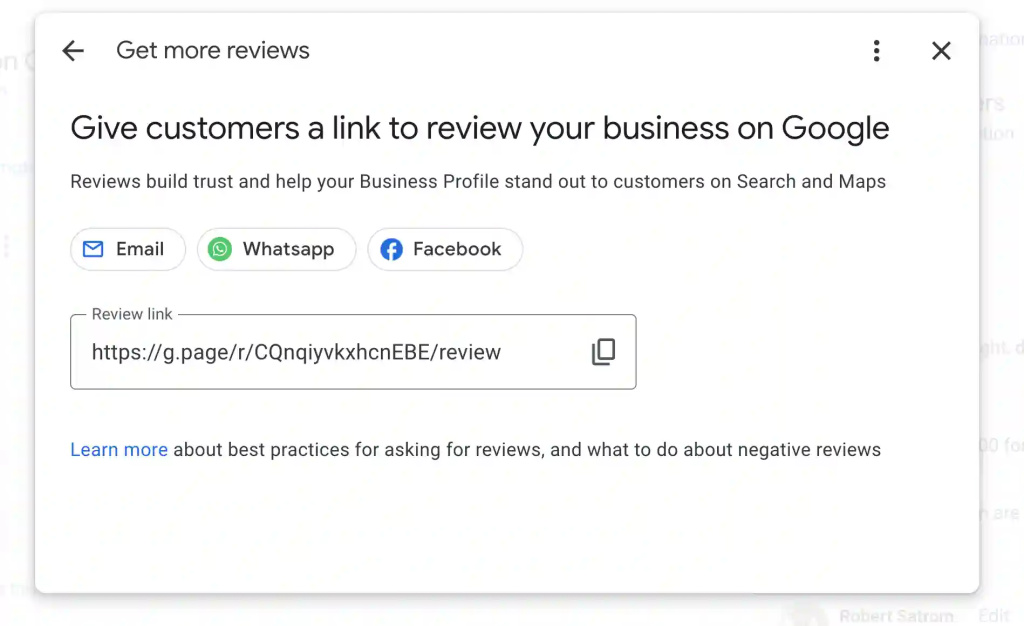
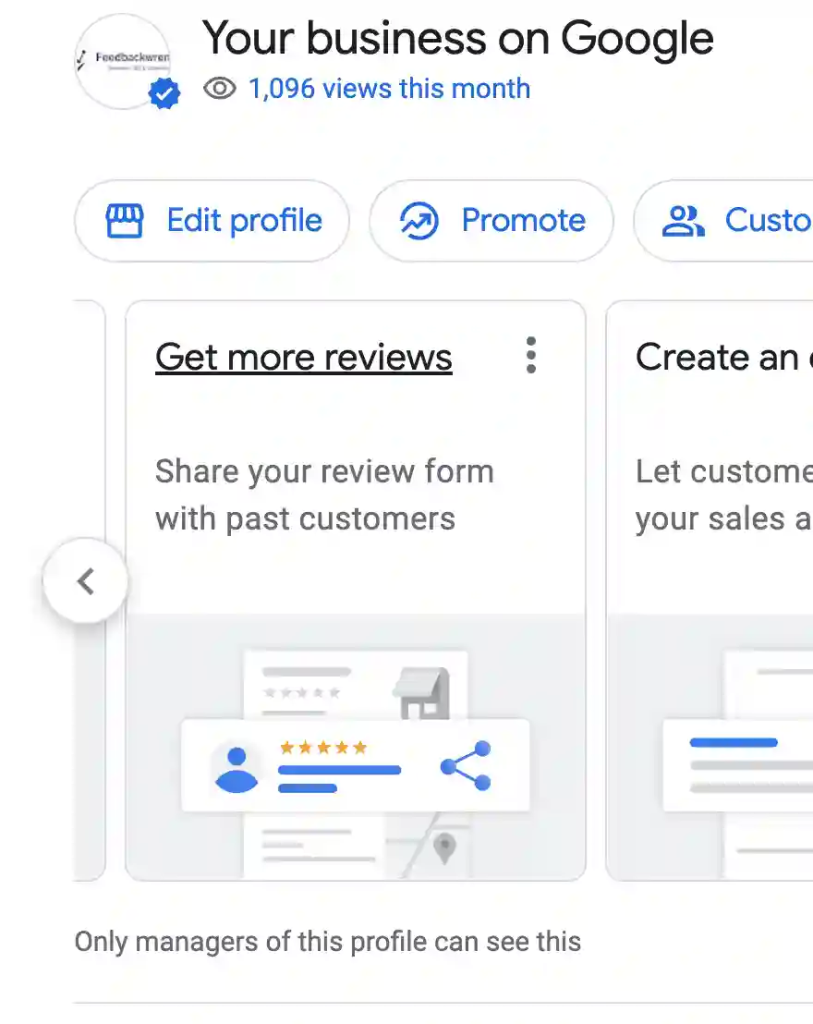
- Click Get more reviews in the dashboard
- Copy the link that appears
Find Your Review Link Through Google Search
For users who need a faster route, Google Search surfaces the review link without requiring a dashboard login. The method works for anyone with manager access to the listing.
- Search the business name directly on Google
- Locate the Knowledge Panel on the right side of the results
- Click Get more reviews
- Copy the short review link provided
Get a Google Review Link From Google Maps
Google Maps offers another practical route to the same link, particularly useful for businesses managing their presence directly from the Maps interface.
- Open Google Maps and search for the business
- Click the business name to open the listing
- Select Reviews, then click Get more reviews
- Copy and share the link
How to Send a Google Review Link to Customers
Getting the link is only half the job. Sending it through the right channel at the right moment determines whether customers actually follow through and leave a review.
Send a Google Review Link by Email
Email remains one of the most effective channels for collecting reviews. A well-timed follow-up email after a purchase or service appointment reaches customers when the experience is still fresh.
A strong review request email keeps three elements in place:
- Subject line: Keep it short and personal. “How did we do?” or “Your feedback matters” outperforms generic subject lines.
- Body copy: Thank the customer, reference the specific product or service, then place the review link as a clear call to action.
- Timing: Send within 24 to 48 hours after the transaction closes.
Share a Review Link via SMS and Messaging Apps
SMS delivers review requests directly to a customer’s phone with open rates significantly higher than email. Most messages are read within three minutes of delivery.
A short, friendly SMS works best:
- Keep the message under 160 characters
- Include the customer’s first name
- Add the review link with a brief line such as “We’d love your feedback”
- Avoid sending late at night or early in the morning
Use QR Codes to Collect More Reviews
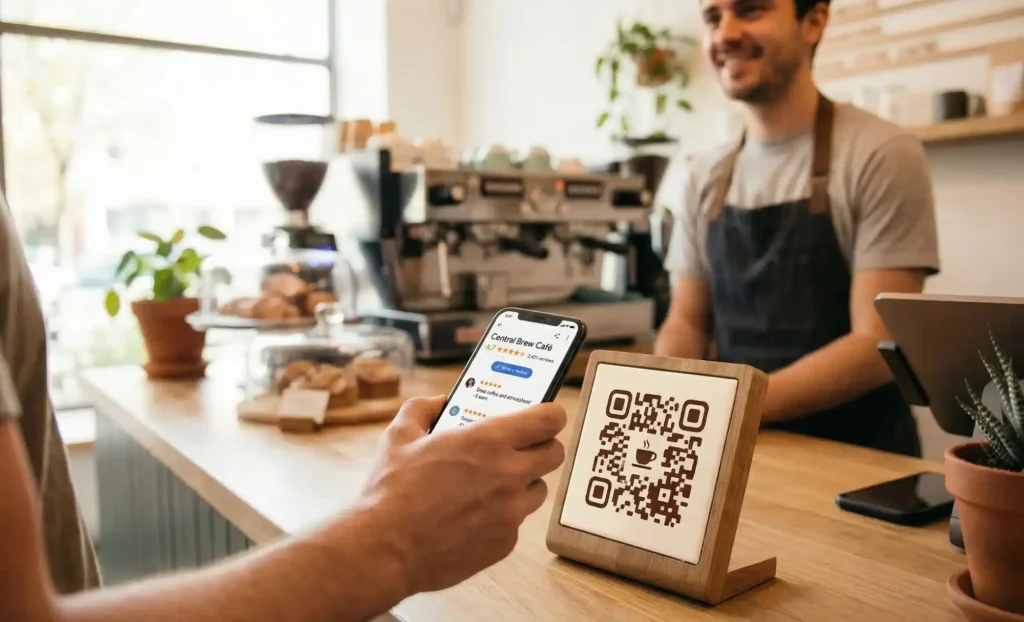
QR codes convert a Google Review link into a scannable format, removing the need to type or click anything on a screen. Customers point their phone camera at the code and land directly on the review page.
Effective placements for printed QR codes include:
- Receipts and invoices
- Product packaging and thank-you cards
- Storefront windows and counter displays
- Restaurant menus and table cards
- Event booths and trade show materials
How to Add a Google Review Link on Your Website
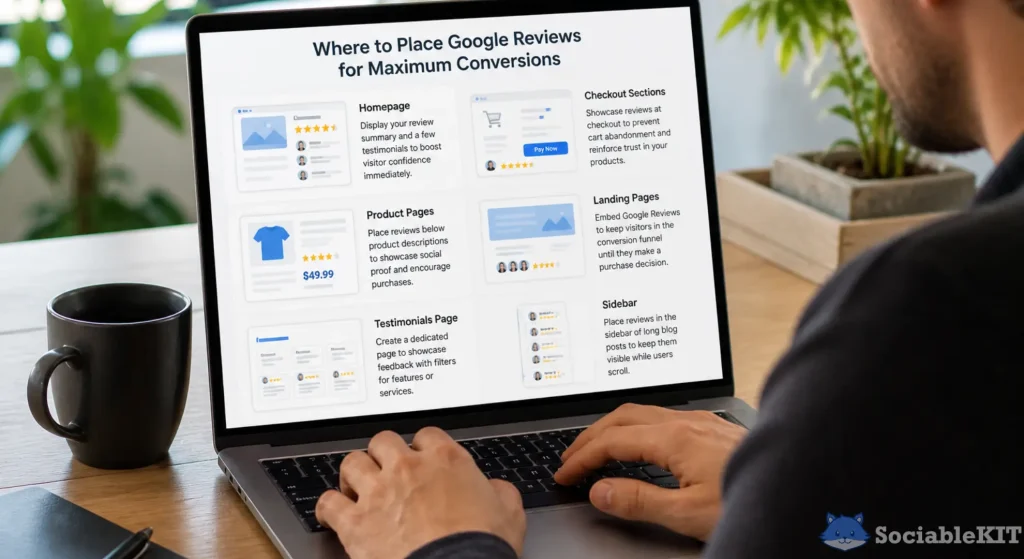
A website is one of the most consistent touchpoints a business controls. Placing a Google Review link in the right location turns existing visitors into active reviewers without requiring any additional outreach.
Add a Review Button to Your Homepage
The homepage receives the highest traffic of any page on a business website. A visible review button here captures visitors who already have brand familiarity.
Best practices for homepage review buttons:
- Use clear button text such as “Leave a Review” or “Share Your Experience”
- Place the button in the header, hero section, or footer for maximum visibility
- Match the button style to the existing design system
- Open the review link in a new tab so visitors do not leave the site entirely
Create a Dedicated Review Page
A dedicated review page gives businesses a central hub to collect and showcase social proof. The page can host the Google Review link alongside testimonials, star ratings, and instructions for first-time reviewers.
Key elements to include on a dedicated review page:
- A prominent headline encouraging feedback
- A short explanation of why reviews matter to the business
- A direct call-to-action button linking to Google Reviews
- Existing reviews or testimonials pulled from Google or other platforms
Place Review Links on Thank You and Contact Pages
Thank you pages appear immediately after a customer completes a purchase, books an appointment, or submits a form. At that moment, satisfaction is at its peak and the customer is already engaged.
Strong placements on these pages include:
- A short line after the confirmation message: “Enjoying our service? Leave us a quick review.”
- A review button placed below the order summary or booking details
- A link embedded in the automated confirmation email triggered by the same action
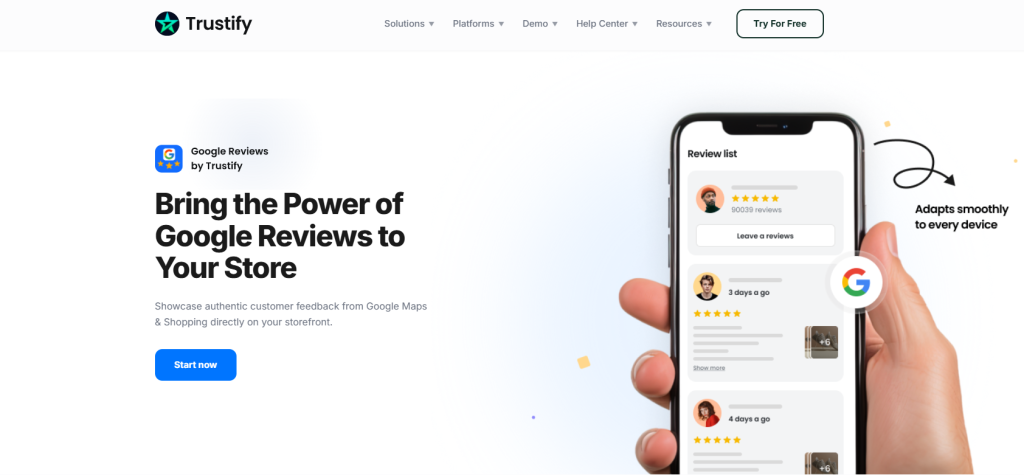
Embed Your Google Review Link on Your Website With Trustify
Placing a Google Review link on your website is simple. Displaying review ratings in a way that builds trust and encourages more customers to leave feedback is where a dedicated solution helps.
Google Reviews by Trustify lets businesses showcase Google ratings directly on their website while giving visitors a quick path to leave a review. The badge automatically syncs with your Google Business Profile and keeps review information up to date without manual updates.
Key features include:
- Display Google star ratings and review counts on your website
- Auto-sync reviews from your Google Business Profile
- Add a direct review button that sends customers to your Google review page
- Customize the badge appearance to match your website design
- Install with minimal setup and no custom coding required
Best Practices for Getting More Reviews
Collecting Google reviews consistently requires a repeatable system, not a one-time ask. According to BrightLocal, 98% of consumers read online reviews for local businesses, making review volume a direct factor in purchase decisions.
Make Leaving a Review as Easy as Possible
Friction is the primary reason customers do not leave reviews. Podium research found that 77% of customers are willing to leave a review when asked, yet most businesses never follow up with a direct link.
Delivering the link at the exact moment of satisfaction removes the most common barrier. A post-purchase confirmation page, a delivery notification, or a follow-up SMS with one tap to the review form all outperform generic requests buried in newsletters.
Personalize Your Review Requests
Generic messages read as automated and easy to ignore. Using the customer’s first name, referencing the specific service or product, and sending from a recognizable sender name significantly improve response rates.
Avoid Common Google Review Policy Violations
Google prohibits incentivizing reviews, review gating, and bulk importing feedback from third-party platforms. Violations can result in reviews being removed or the listing being penalized.
The safest approach is to ask every customer consistently and let feedback arrive organically. Google’s review policies outline prohibited practices in full.
Respond to Reviews to Encourage Future Feedback
Unanswered reviews signal indifference and discourage future submissions, businesses responding to reviews saw measurable increases in overall ratings over time.
A brief, genuine response to positive reviews and a calm, constructive reply to negative ones demonstrates engagement. Google also rewards active profiles with stronger local search visibility, making consistent responses valuable beyond the direct effect on reviewer behavior.
Frequently Asked Questions about Google Review Link
Can a Google Review link expire?
A standard link does not expire, but links tied to a specific place ID can break if Google updates the listing data.
Does asking for reviews violate Google’s terms of service?
Asking is permitted. Google only prohibits incentivizing reviews, filtering out negative feedback before sending the link, or using services that generate fake reviews.
Can a business use the same review link across multiple campaigns?
Yes. The link points to the listing, not a specific campaign. Use UTM parameters or a branded short link with click analytics to measure which channel drives the most reviews.
What happens if a customer does not have a Google account?
Google requires a signed-in account to submit a review. Customers without one will be prompted to create an account before proceeding.
Conclusion
A Google Review link is a small asset with a significant impact on local visibility and customer trust. Getting the link right, placing it in the correct channels, and sending it at the right moment turns satisfied customers into a consistent source of public social proof.
The businesses that build review collection into their standard workflow accumulate the volume and recency that Google’s algorithm rewards.