To collect customer reviews after checkout using Google Reviews app by Trustify, please following these steps:
1. Embed the app block to the store
2. Customize the review request form
3. View reviews on the app
4. Integrate Google Customer Reviews opt-in to Trustify (Optional)
1. Embed the app block to the store
- Step 1: Go to the page “Collect Review”
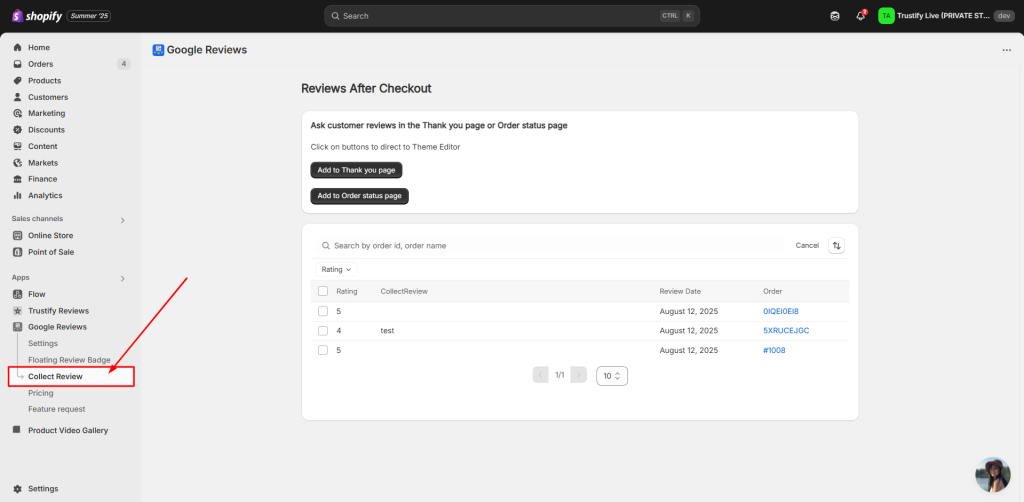
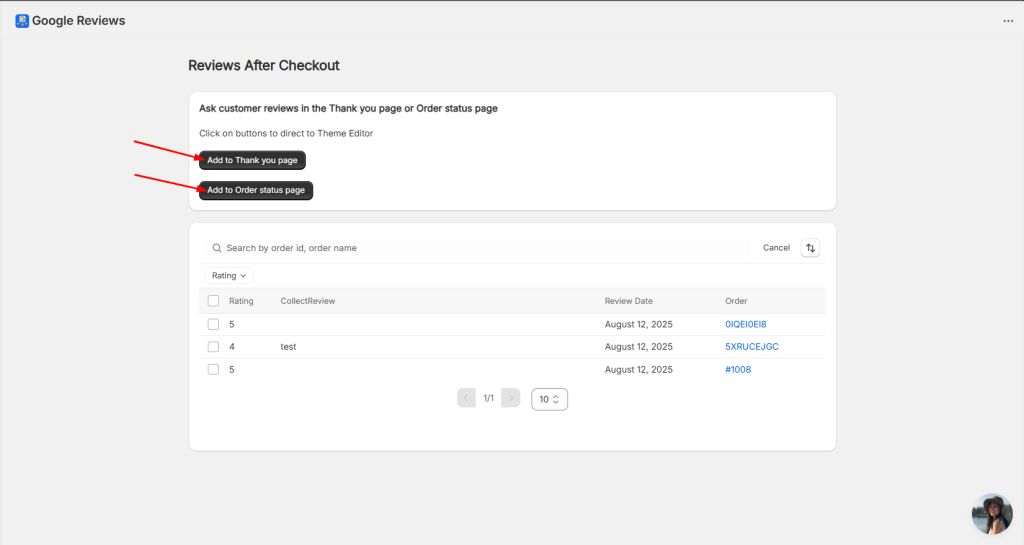
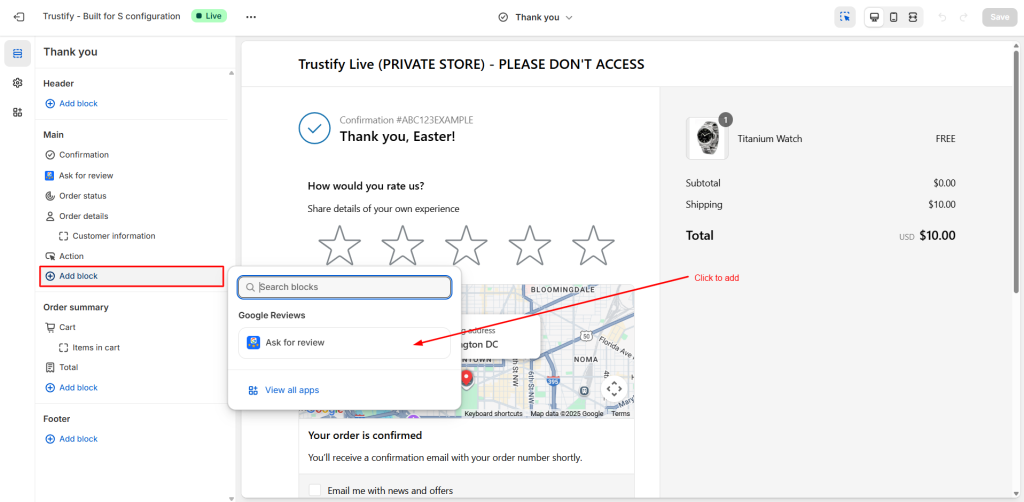
- Step 2: Click the “Add to Thank You Page” or “Add to Order status page” button to redirect to the Thank You page. On the Thank You page, add the “Ask for Reviews” block from Trustify to any position in the store you desire.
- Remember to click the save button to complete every your setup
2. Customize the review request form
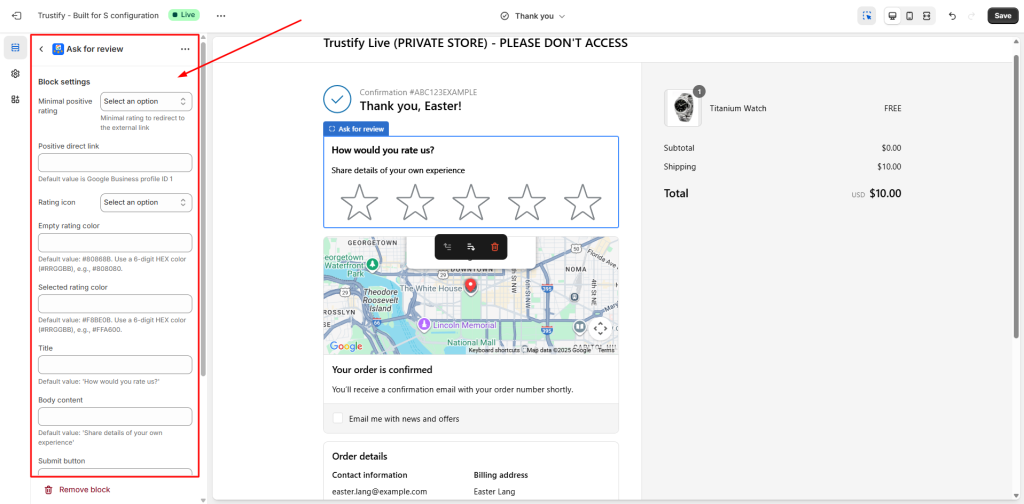
- You can customize the review request form directly on the Theme Editor. Remember to click the save button to complete every your setup
- Explain setting fields:
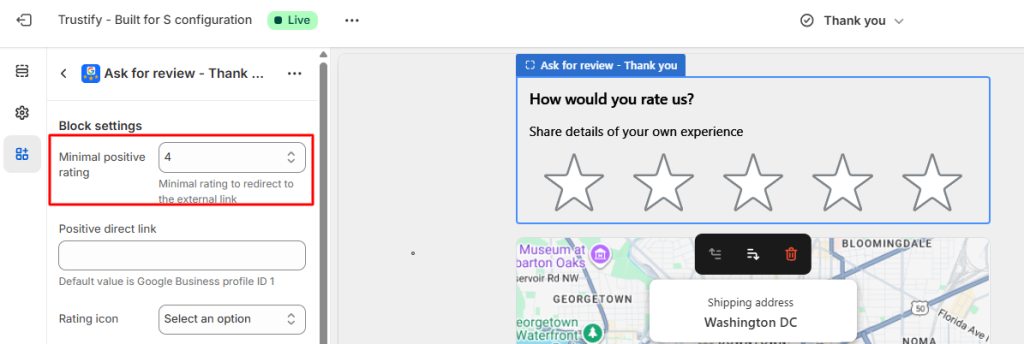
| Minimal positive rating | Minimal rating to redirect to the external link | For example: If you select the option 3-star, it means that + From 4-star to 5-star: when users rate 4* & 5*, they will be redirected to Positive direct link + From 1-star to 3-star: when users rate 1,2,3*, their rating will be list in the app |
| Positive direct link | TThe link customers will be redirected to when they give a positive rating. | |
| Rating icon | There is 5 types of rating icons: Star/ Diamond/ Pets/ Coffee/ Plants | |
| Empty rating color | Color code for empty rating | |
| Selected rating color | Color code for selected rating | |
| Title | Title of the review request form https://prnt.sc/v9KTe6Zbf9EU | |
| Body content | https://prnt.sc/h69B2cNFcPZG | |
| Submit button | Text for the submit button | |
| Review content place holder | https://prnt.sc/Wo4k2NNrxmtW | |
| Thank you text | https://prnt.sc/7WQtviEgk2N2 |
3. View reviews on the app
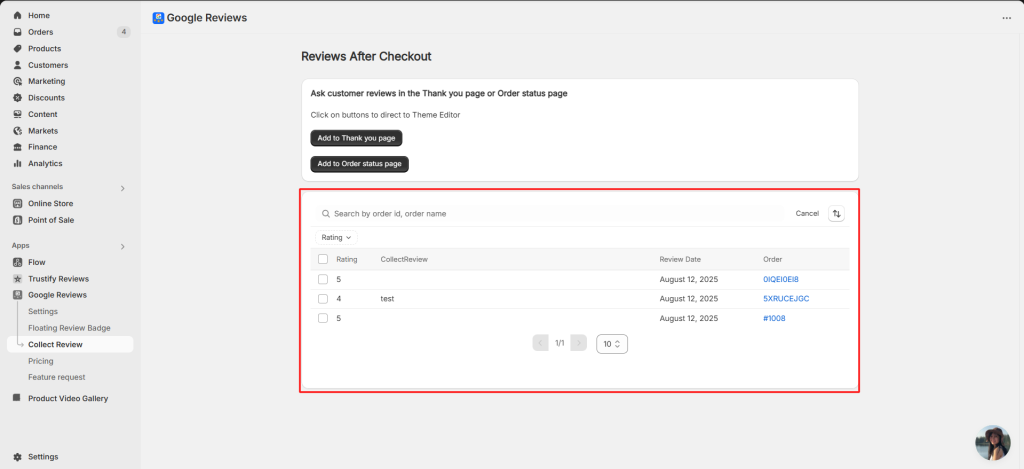
All reviews your customers rate on the review form after Checkout will be listed in the app.
4. Integrate Google Customer Reviews opt-in to Trustify (Optional)
The Google Customer Reviews survey enables customers to rate their purchase experiences with your site. If a customer opts in, Google sends them a survey after their order has been delivered. The Google Customer Reviews survey is designed to allow customers to review their entire shopping experience. This article will show you how to add Google Customer Reviews Opt-in to your Shopify store with Trustify.
Step 1: Activate Google Customer Reviews in your GMC
- Open Google Merchant Center.
- Sign in using your Google account.
- Choose your Merchant Center account.
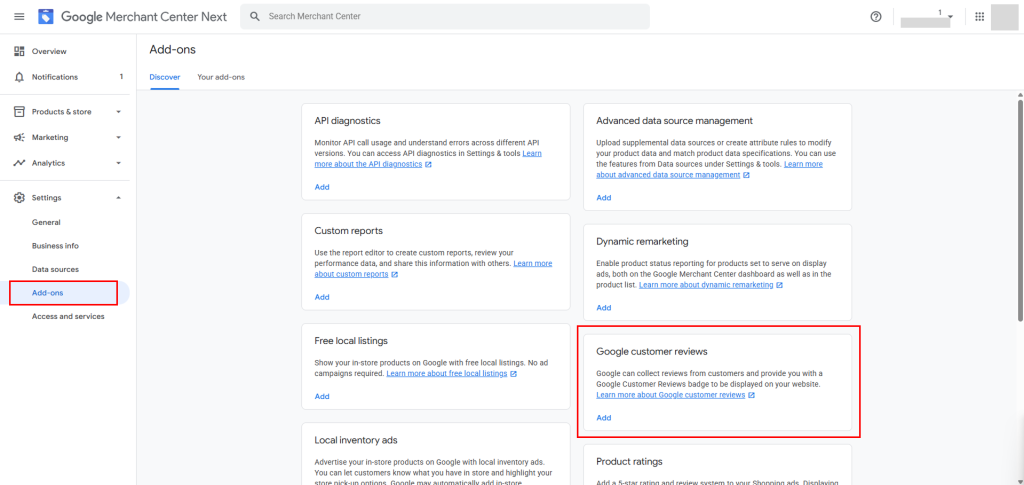
- In the left menu, go to Settings → Add-ons.
- Find Google Customer Reviews in the available programs list.
- Click Enable next to it.
- Review and accept the terms.
- Click Continue to finish activating the program.
Step 2: Locate Your Google Merchant ID
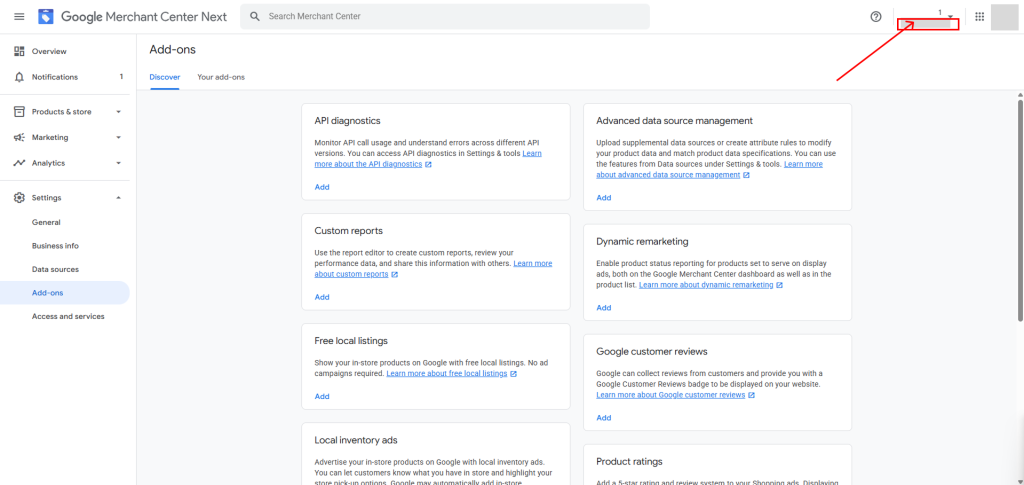
- In your Google Merchant Center, look at the top-right corner of the page.
- Your Merchant ID is displayed there.
- Copy this ID — you’ll need it later during the app setup.
Step 3: Insert Google Merchant ID and Average Delivery Days
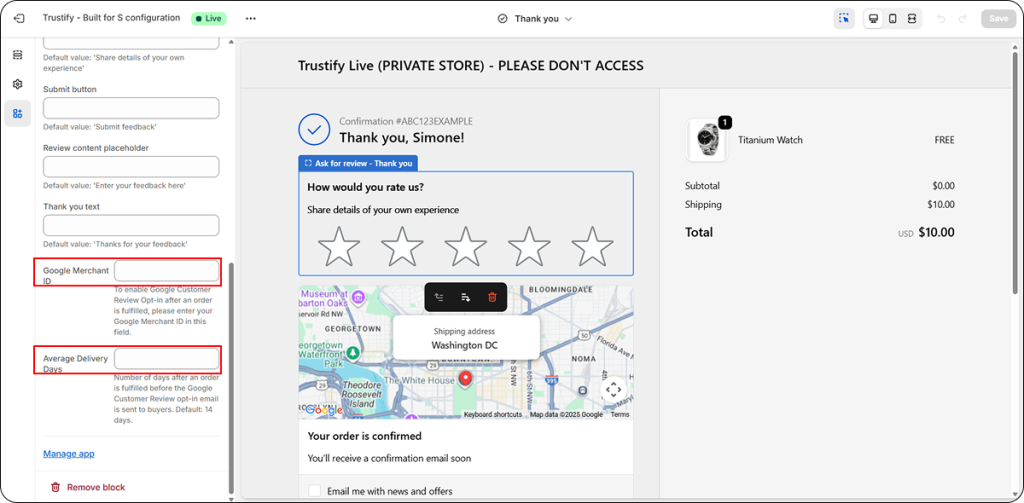
After add the block “Ask for review” of Trustify on Thank you page/ Order Status page, please enter Google Merchant ID and Average Delivery Days.
- Google Merchant ID: Copy ID from your Google Merchant Center
- Average Delivery Days: Number of days after an order is fulfilled before the Google Customer Review opt-in email is sent to buyers. Default: 14 days.
⚠️ Important: When configuring Google Customer Review Opt-in in the Trustify app:
- If the Minimum positive rating is set to 5, buyers who 5-star rating will see a Google Customer Review confirmation popup.
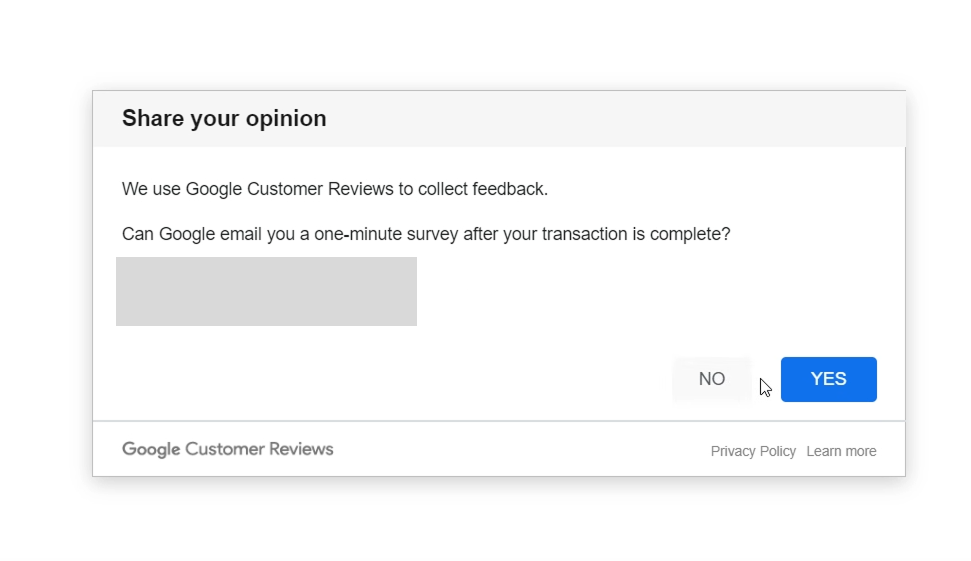
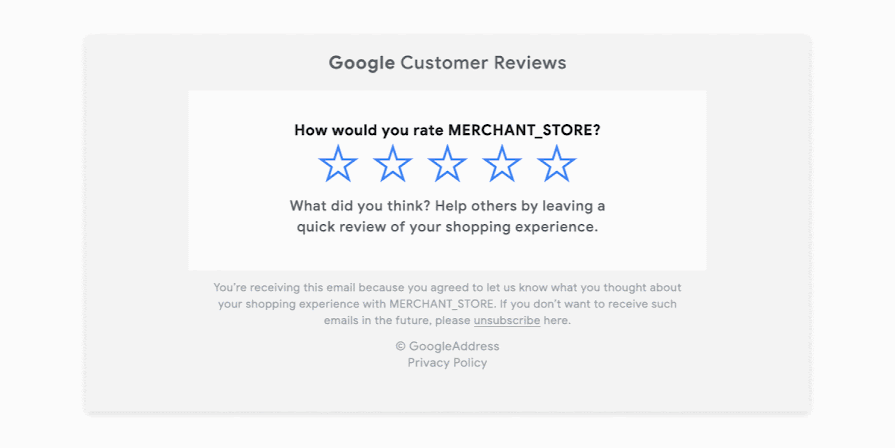
- After confirmation, Google will automatically email a survey invitation after their purchase arrives after the number of Average Delivery Days you set in the app, once the order is fulfilled.
Step 4: Preview on live store
If you want to configure the app, please contact us via live chat or support email [email protected]. Our team will access you instantly for customizing for you.