The Google Customer Reviews survey enables customers to rate their purchase experiences with your site. If a customer opts in, Google sends them a survey after their order has been delivered. The Google Customer Reviews survey is designed to allow customers to review their entire shopping experience. This article will show you how to add Google Customer Reviews Opt-in to your Shopify store with Trustify.
Step 1: Activate Google Customer Reviews in your GMC
- Open Google Merchant Center.
- Sign in using your Google account.
- Choose your Merchant Center account.
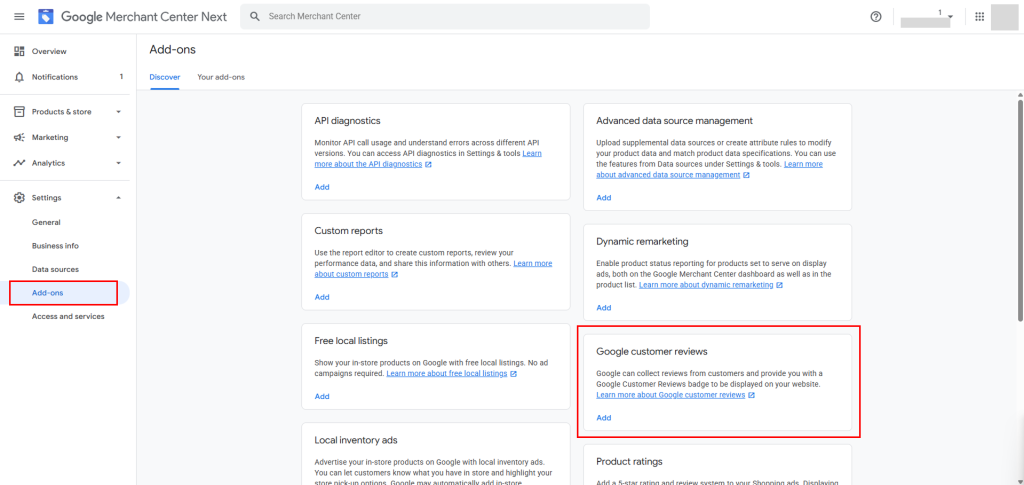
- In the left menu, go to Settings → Add-ons.
- Find Google Customer Reviews in the available programs list.
- Click Enable next to it.
- Review and accept the terms.
- Click Continue to finish activating the program.
Step 2: Locate Your Google Merchant ID
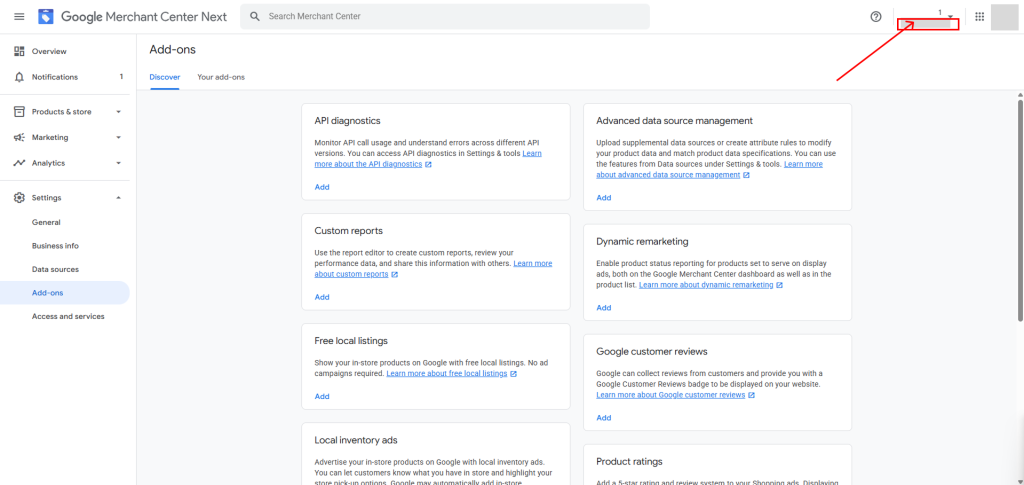
- In your Google Merchant Center, look at the top-right corner of the page.
- Your Merchant ID is displayed there.
- Copy this ID — you’ll need it later during the app setup.
Step 3: Insert Google Merchant ID and Average Delivery Days
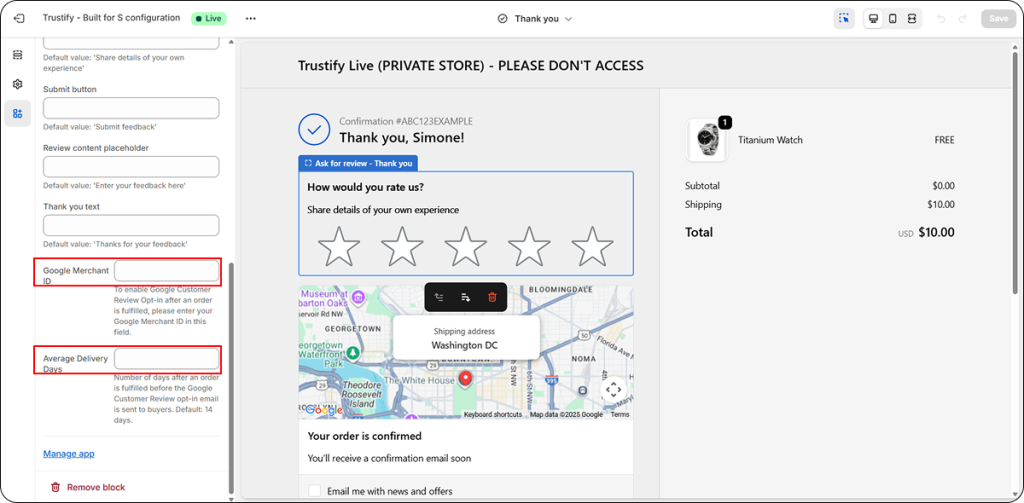
After add the block “Ask for review” of Trustify on Thank you page/ Order Status page, please enter Google Merchant ID and Average Delivery Days.
- Google Merchant ID: Copy ID from your Google Merchant Center
- Average Delivery Days: Number of days after an order is fulfilled before the Google Customer Review opt-in email is sent to buyers. Default: 14 days.
⚠️ Important: When configuring Google Customer Review Opt-in in the Trustify app:
- If the Minimum positive rating is set to 5, buyers who 5-star rating will see a Google Customer Review confirmation popup.
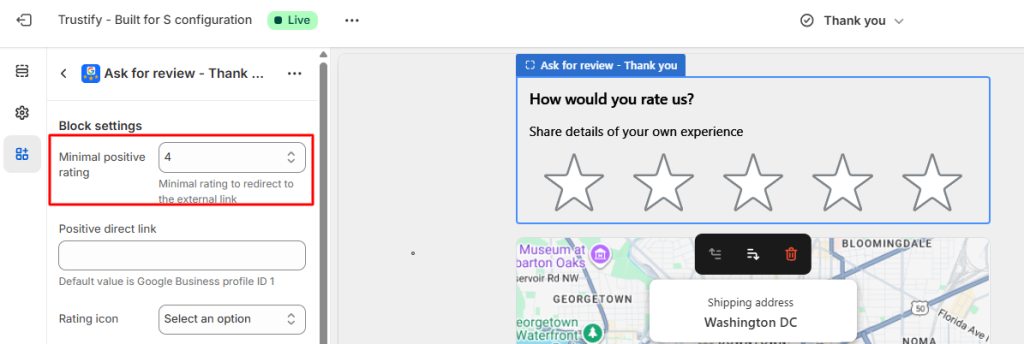
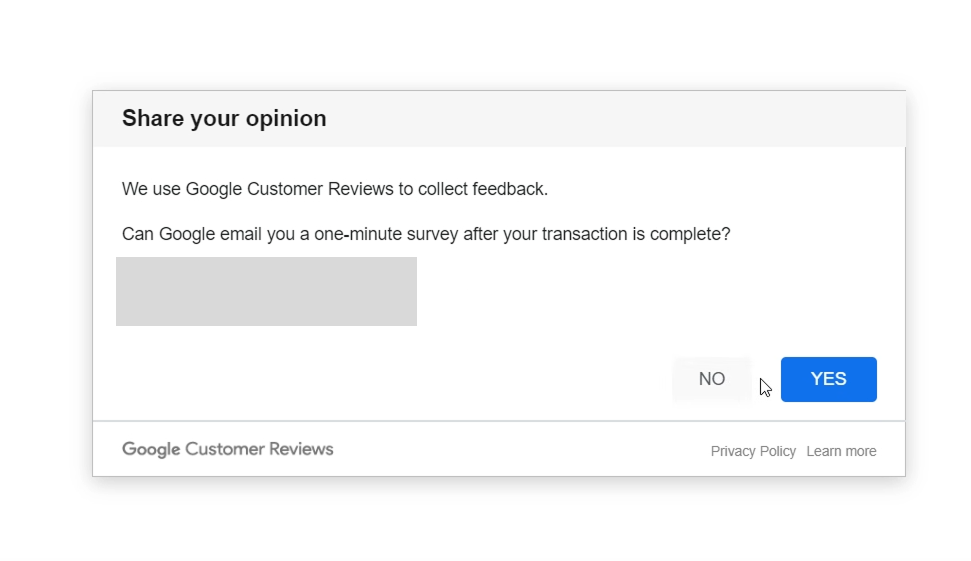
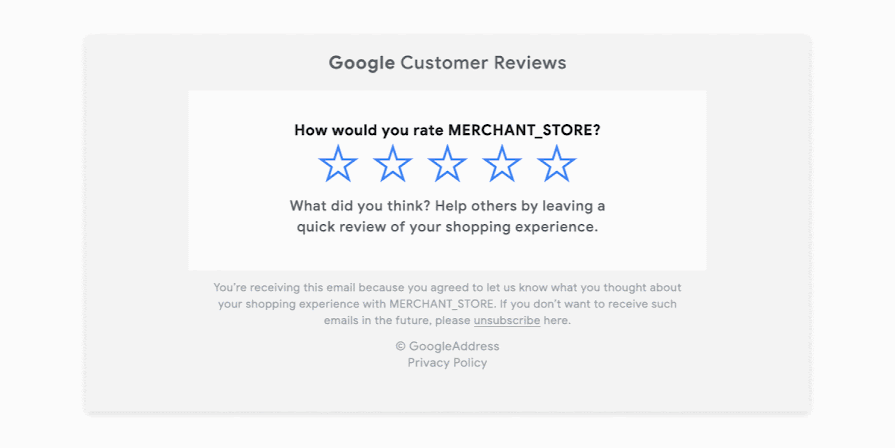
- After confirmation, Google will automatically email a survey invitation after their purchase arrives after the number of Average Delivery Days you set in the app, once the order is fulfilled.
Step 4: Preview on live store
If you want to configure the app, please contact us via live chat or support email [email protected]. Our team will access you instantly for customizing for you.